 Freezon
How to Make a Scrolling LED Sign on iPhone for Concerts
Turn your iPhone into a scrolling LED concert banner or bold static sign in under a minute with offline editing and full-screen display.
To turn your iPhone into a scrolling concert banner in under a minute, open Freezon Banner, type your shoutout, choose your scroll speed, and tap full screen. There is no account to register, and editing, previewing, and displaying all work offline right from your seat—even in crowded venues with spotty cell service.
1. Type a punchy short phrase
At a dim, loud live venue, brevity is everything. Keep your text short so people nearby can read it in a single second. Two or three reliable examples you can borrow directly include ENCORE!, WE LOVE YOU, or ONE MORE SONG. You can mix in text and emoji, but resist pasting long sentences that take too long to scroll by.
2. Set scroll direction and speed
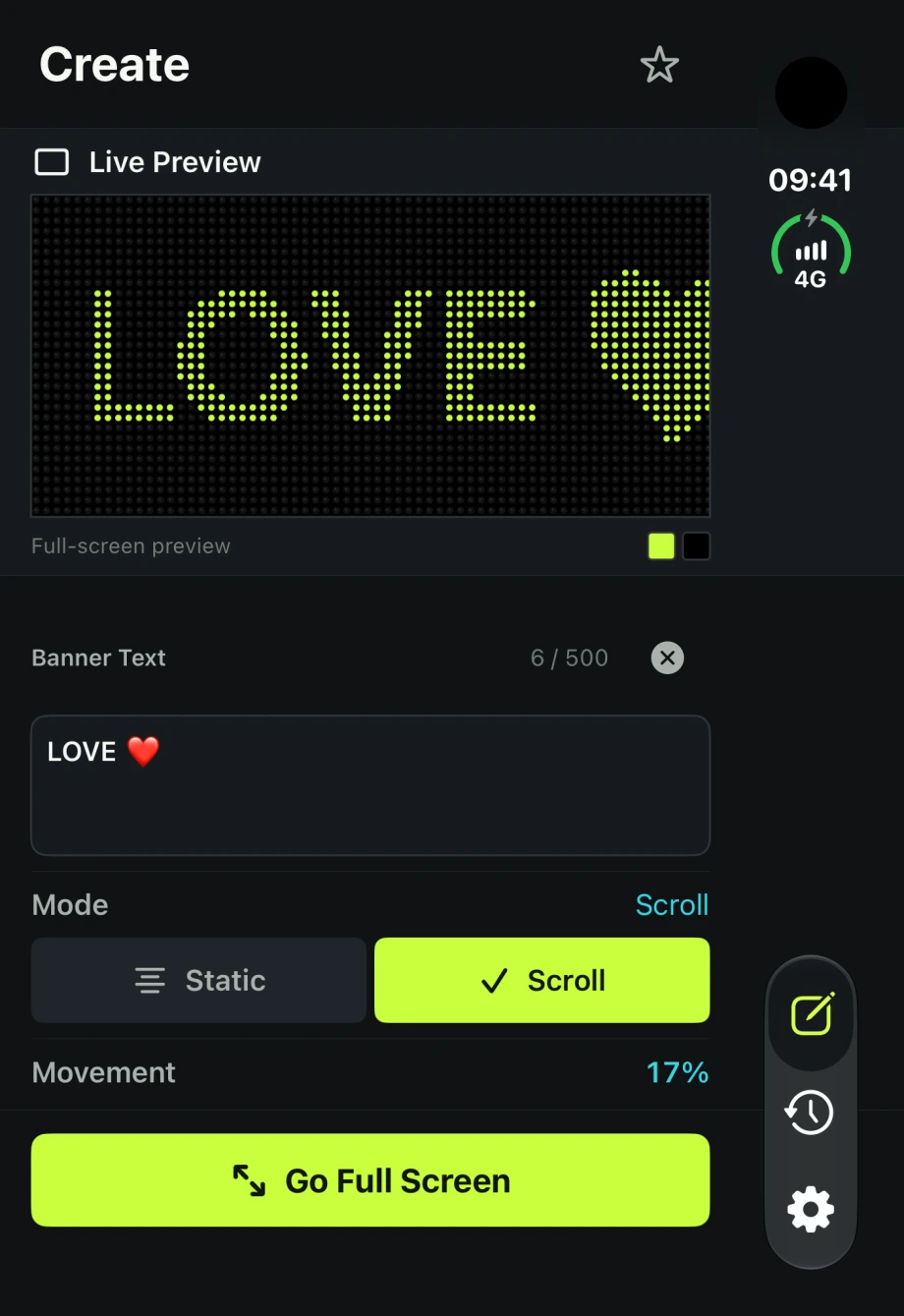
Choose which direction your text moves—left, right, up, or down. Leftward scrolling delivers the classic ticker feel, but you can fine-tune the speed directly against the live preview. Set the pace so letters remain crisp and readable rather than blurring into an unreadable streak.
3. Pair high-contrast colors and styles
Visibility in low-light venues comes down to sharp contrast. Stick to a dark background paired with bright text—such as neon green, vibrant yellow, or clean white. You can switch between a solid dark backdrop and an LED grid background, and test basic effects like outline, neon, or dot styles to give your lettering an arena board look.
4. Test in preview, then go full screen
Before the stage lights dim, check your banner in the live preview. A good rule of thumb is to hold your phone out at arm's length or step a few paces back to verify the lettering is sharp. When you are ready, tap into full-screen mode. This hides every editing slider and keeps your iPhone screen awake in the foreground throughout the show.
When to choose static big text over scrolling
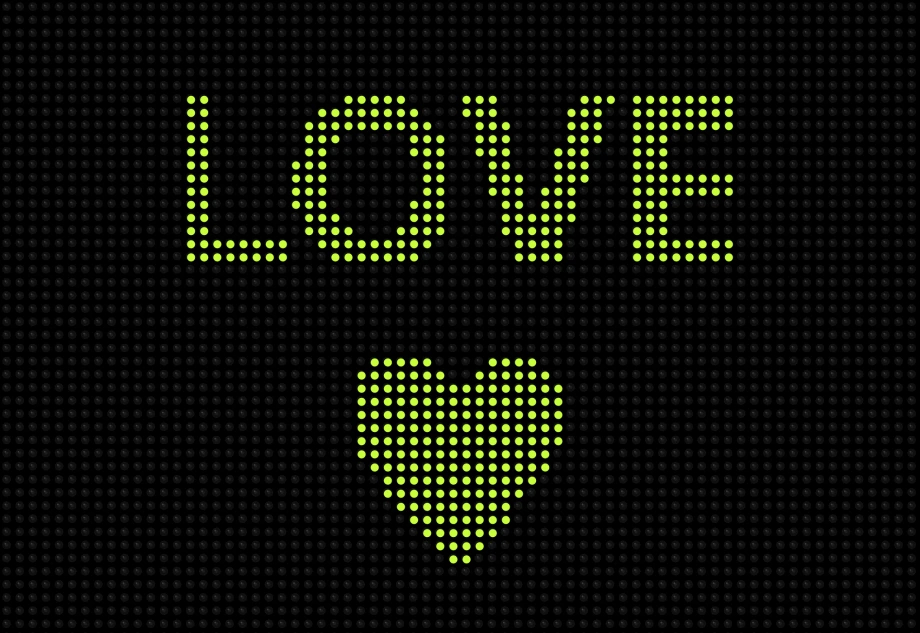
Scrolling tickers are classic, but single-screen static mode is often more effective for ultra-short cheers like HI or LOVE. Static mode stacks brief words into clean, multi-line big letters that stay on screen, so anyone looking your way catches your shoutout instantly without waiting for a scroll loop. Keep in mind that static mode is built for short phrases, not long sentences.
Ready for your next live show? Open Freezon Banner on your iPhone or iPad and draft your concert sign before the opener takes the stage.
